Folder Tracks
Keeping the Arrange view organized can be critical to workflow, and Folder Tracks have traditionally helped in this area. Fender Studio Pro's Folder Tracks also include Grouping and Busing options, extending improvements to editing and mixing workflow.
Create a Folder Track
When organizing existing Tracks, the simplest method of placing the Tracks into a new Folder Track is to select them all in the Track Column, then [Right]/[Ctrl]-click and choose Pack Folder from the contextual menu. This creates a new Folder Track and places all of the selected Tracks in it. Alternatively, you can drag-and-drop any Track onto an existing Folder Track. Folder Tracks can contain Audio, Instrument, Automation, and even other Folder Tracks.
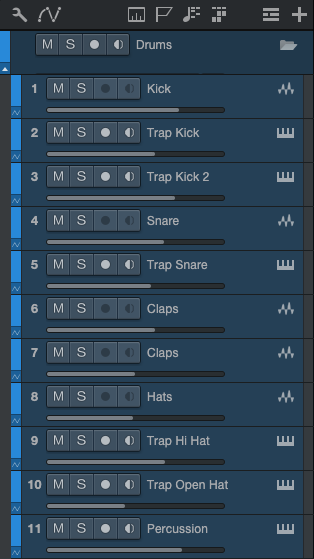
Click the Folder icon in the Track control area to show or hide the Tracks within the Folder in the Arrange view. If Link expansion and visibility of Folder Tracks is enabled in the Console Visibility Options, the related Channels are shown and hidden in the Console as well.
Note that Folder Tracks also have Mute, Solo, Record, and Monitor Enable buttons. Clicking on these engages the appropriate action for any Track within the folder.
Folder Track Grouping
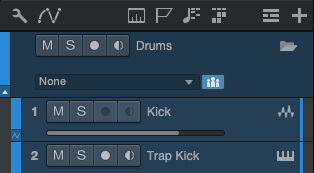
Clicking the Group icon on a Folder Track creates a Group with the name of the Folder Track and places all Tracks it contains into the Group. This is exactly the same as selecting all of the Tracks and grouping them with [Ctrl]/[Cmd]+[G]: The Tracks are selected together in the Console and Arrange views, and the Events on the Tracks are edited together. If the Group icon is engaged on a Folder Track, clicking it again removes the Group.
If a Track is already in a Group prior to being placed in a Folder Track, and the Folder Track Group is engaged, the Track is placed in the Folder Track Group when it is placed in the Folder Track. If removed from the Folder Track, a Track retains its Group setting.
Folder Track Editing
When a Folder Track is collapsed, a single "Event” with lanes representing each Track in the Folder across the arrangement is displayed. It is possible to directly edit this consolidated Event, including Size, Move, Cut, Copy, Paste, and Duplicate. This ability saves time in cases where simple edits do not require viewing a particular Track in the Folder or even grouping the Tracks within.
Folder Track Busing
Clicking on the Bus selection box to the left of the Group icon on a Folder Track allows the selection or creation of a Bus Channel. Choose from an existing Bus Channel, or add a Bus, to switch the output for all Tracks contained in the Folder Track to a Bus Channel. If adding a new Bus Channel, the Bus takes the name of the Folder Track.
If a Bus selection is made, the Folder Track acts as an effects-drop target for the Bus Channel when dragging effects from the browser onto the Folder Track.
As with Folder Track grouping, if the Folder Track has a Bus Channel selection, any Track added to the folder is routed to that Bus when placed in the Folder Track. If removed from the Folder Track, a Track keeps the Bus as its Output Channel selection.
For Instrument Tracks, the Track's related Audio Channel is routed to the Folder Track Bus Channel. The related Audio Channel is the one shown in the Inspector under the Out and In selections for an Instrument Track. As noted elsewhere in this manual, the Audio selection for an Instrument Track is purely organizational and allows Fender Studio Pro to accomplish workflow enhancements like the aforementioned. If a virtual instrument is using multiple Output Channels, you should take the time to organize which Instrument Tracks routed to that virtual instrument are related to which Output Channels in the Inspector.
Folder Track Nesting
When Folder Tracks are nested—that is, when one Folder Track is placed inside another—the Folder Track Grouping and Busing options still only apply for the Tracks within each folder. Here is an example:
Tracks 1 through 8 are in Folder Track A, which has Group enabled and is routed to Bus A. Tracks 9-12 are packed to a new Folder B, Group is enabled there, and a new Bus B is created. Folder B is then dragged into Folder A. The Tracks in Folder B are still grouped in Group B, and are still routed to Bus B. The only difference is organizational: Hiding Folder A Tracks also hides Folder B.