Global Tracks
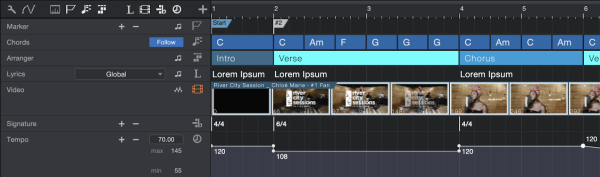
The Global Track buttons sit in the area above the track controls in the Arrange view. They open dedicated tracks that span the full length of the Arrangement. Each Global Track provides a unique and essential function, and can help you know at a glance what is happening during the Session.
Global Track Visibility button
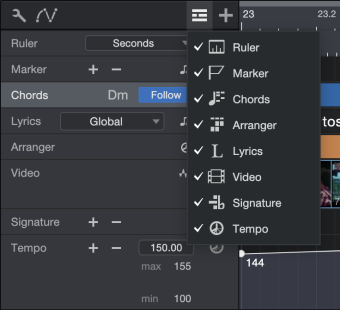
When the Arrange view is wide enough, all of the Global Track buttons are visible. But when screen area is at a premium, the area that contains the track controls and Global Track buttons can be made smaller by clicking and dragging the dividing line between them and the Arrangement. As this happens, the Global Track buttons collapse into a single Global Track Visibility button.
You can use this button to access all six of the Global Track buttons: simply click the Global Track Visibility button to view them in a vertical list, and then make a selection. A check mark indicates the Global Tracks that are currently open.
Ruler Track
The Ruler Track provides a secondary timeline ruler with a different format, allowing you to view the Session position in two different formats at the same time. For example: bars/beats and timecode (frames). The options match those of the primary timebase setting:
- Seconds: The timeline division is an expression of hours : minutes : seconds : milliseconds.
- Samples: The timeline division is an expression of samples.
- Bars: The timeline division is an expression of musical bars and beats.
- Frames: The timeline division is an expression of frames.
As with the primary timeline, click anywhere on the secondary timeline to locate the playback cursor to that position in the Session. Use [Right]/[Ctrl]-click to access Timebase settings, Session Markers, Loop settings, and more.
Marker Track
The Marker Track allows you to define section divisions within the Session, as well as the Session start and end points. Click this button to view its contents, and use the plus and minus buttons to add or delete markers. For more information, see Using the Marker Track.
Arranger Track
This button opens the Arranger Track, which enables you to view and rearrange sections of the Session as if they were individual Events. For more information, see the Arranger Track section.
Chord Track
Click this button to open the Chord Track, which displays the chord progression for the Session. This can be constructed manually or detected and extracted from one or more Events. For more information, see the Chord Track section.
Lyrics Track
Click this button to open the Lyrics Track, which displays and allows you to enter and edit lyrical content for your Session.
The Global Lyrics Track is found on both the Session and Show pages. For more information, see the Lyrics Track Note that the Global Lyrics Track is an independent but related entity to the Lyrics Lanes
Video Track
The video track allows for placement of a video, useful for scoring to motion pictures. Videos can be moved across the timeline and lightly edited, and you can even extract their audio to a separate track. Video Track is a more complex topic covered in greater detail in the Video Playback and Sync topic.
Signature Track
This button opens the Signature Track, which contains the settings for the Time Signatures and Key Signatures of the Session. It also allows you to view, add, edit, or remove changes to those items. For more information, see the Signature Track section.
Tempo Track
Click this button to open the Tempo Track, where all tempo settings for the Session can be viewed and adjusted. Tempo changes may also be added and deleted. There's a full description in the Tempo Track section.
Global Tracks in Audio / Music Editors
There's also a Global Track Visibility button in the Audio and Music Editor windows (with the exception of the Score view). You can use this button to access four of the six Global Track buttons: Marker, Arranger, Chords, and Signature. The Secondary Ruler and the Tempo Track buttons are reserved for the Arrange view.
The Global Tracks can also be viewed and toggled in these Editor windows with a [Right]/[Ctrl]-click on the time ruler. The timebase options can be selected at the same time.
Note that the Global Tracks can't be changed inside the Editor windows. To add, edit, or remove items, use the Global Tracks in the Arrange view.