Dynamics
Dynamics processing is a key aspect of mixing and mastering. Fender Studio Pro features very high-quality dynamics processors that give you complete control. The following sections contain fundamental details on the shaping of audio dynamics, as well as the functions of Fender Studio Pro’s dynamics processors.
Compressor
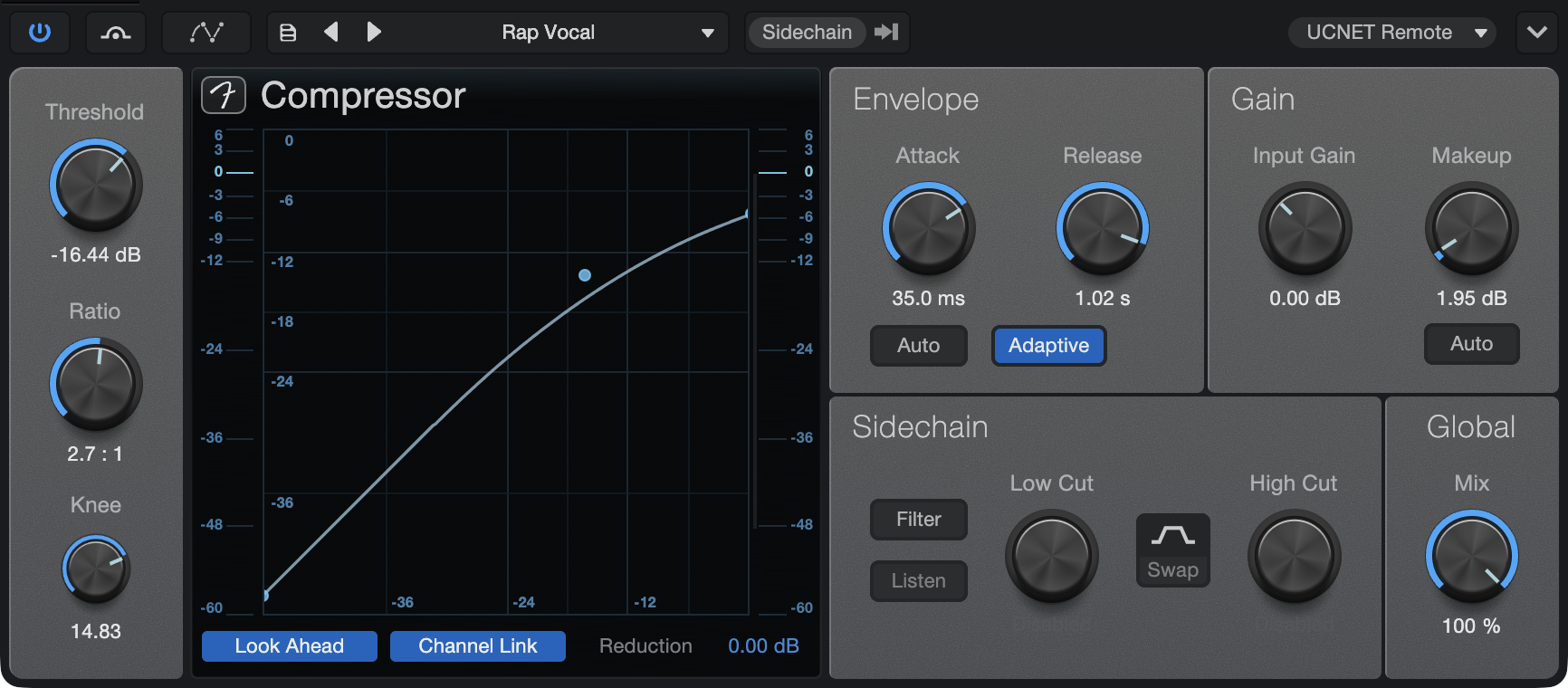
The Compressor is a full-featured, RMS-based mono/stereo compression processor with internal and external sidechains. Use this effect to reduce the dynamic range (signal peaks) of any signal.
The following parameters are available in the Compressor:
- Threshold: Adjusts the lower limit for compression. Variable from -48 dB to 0 dB.
- Ratio: Adjusts compression range. Variable from 1:1 (no compression) to 20:1.
- Knee: Adjusts the soft-knee width. (Width refers to the distance from the threshold to the end of the soft knee.) Variable from 0.1 dB to 20 dB.
- Look Ahead: Click to engage/disengage 2 ms Look Ahead function.
- Channel Link: Click to engage/disengage Stereo Link. Stereo Link sums a stereo input signal to mono for signal-power detection.
- Display:
- Input Level: Displays input level + RMS.
- Reduction: Displays level of compressor attenuation (-60 dB to +3 dB) and the maximum reduction amount. The highest peak is held until surpassed by another peak or until parameters are adjusted or clicked on.
- Compression Curve: Click the handles in the display to control the curve settings.
- Ratio: Click the top right handle to adjust the Ratio when Auto-Gain is not engaged.
- Threshold: Click the middle handle to adjust the Threshold when Auto-Gain is not engaged.
- Knee: Use the mouse wheel while floating the cursor over the middle handle to adjust the Knee when Auto-Gain is not engaged. If you don’t have a mouse wheel, use the Knee knob.
- Gain: Click the bottom left handle to adjust the Makeup gain when Auto-Gain is not engaged.
- Auto-Gain Engaged: Click on the middle handle to adjust the Threshold and Ratio parameters. The X axis controls the Ratio, and the Y axis controls the Threshold. Hover over the handle to control the Knee, as described above.
- Output Level: Displays output level + RMS.
- Attack: Adjusts attack time for dynamics processing. Variable from 0.1 ms to 400 ms.
- Auto: Engage Auto to automatically set varying attack and release settings based on signal content.
- Adaptive: Engage to automatically vary attack and release times in order to avoid pumping. This results in less-aggressive but smoother compression.
-
Release: Adjusts release time for dynamics processing. Variable from 1 ms to 2s.
- Gain: Attenuates or amplifies the compressor input. Variable from -12 dB to 24 dB.
- Input Gain: The name of the Gain control when the Compressor is in Int. Sidechain mode.
- Side Gain: The name of the Gain control when the Compressor is in Ext. Sidechain mode.
- Makeup: When Auto is not engaged, this allows you to control the output gain manually. It is variable from 0 dB to 48 dB.
- Auto: Engage to automatically fix the 0 dB input level to the 0 dB output level (guarantees that a 0 dB input level results in a 0 dB output level). This button cannot be activated when in Ext. Sidechain mode or when the Filter is engaged.
- Sidechain (internal):
- Filter: Click to activate internal sidechain filtering (for frequency-dependent gating). Uses 48 dB/octave filters.
- Listen: Click to listen to the filtered control signal of the internal sidechain. Helps find specific target frequency for control signal when de-essing, transient damping, etc.
- Low Cut/High Cut: Frequency selection for internal sidechain filters. Low Cut variable from Off to 20 Hz to 16 kHz; High Cut variable from 20 Hz to 16 kHz to Off.
- Swap: Click to swap the frequencies used for Low Cut and High Cut.
- Sidechain (external): Engage by clicking the [Sidechain] button at the top of the effect window to allow other sources to control the Compressor. When engaged, you can use the Filter, Listen, Low/High Cut, and Swap controls as described above in the Sidechain (internal) section.
- Sources: Click to display a list of external sidechain channel sources. A checked box indicates the current source. Multiple selections can be made.
- Mix: This parameter lets you set a mix between the wet (effected) and dry (unaffected) signals running through the plug-in, allowing for parallel processing effects.
De-Esser
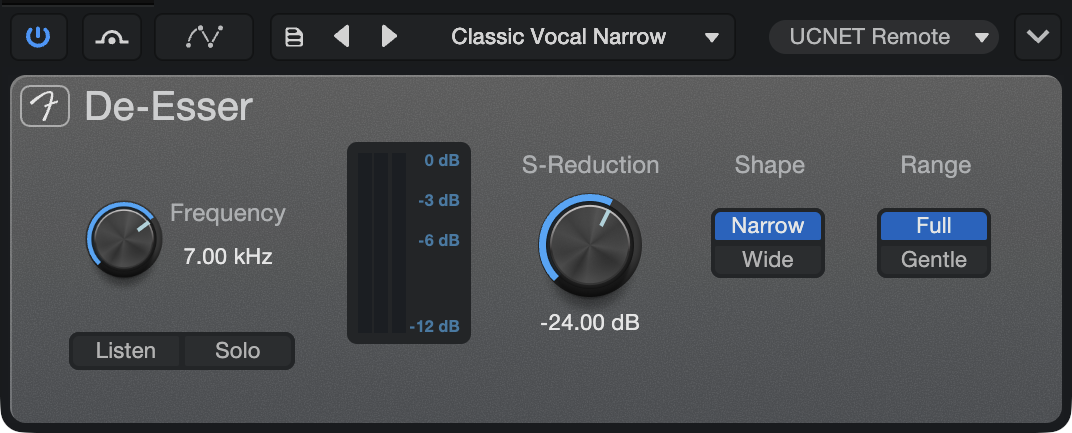
The De-Esser is a full-featured, dynamics processor used to selectively reduce the sibilance (S-sounds) of recordings by selectively compressing only the problematic frequencies. It’s particularly useful for layered vocal recordings, where undesirable sibilance can add up across multiple tracks — and it’s also a suitable choice for taming harsh frequencies in high-hats and cymbals.
The following parameters are available in the De-Esser:
-
Frequency: Adjusts the center frequency used to target sibilant sounds for reduction. Variable from 2 kHz - 12 kHz.
-
Listen: Similar to the key-listen function on the Compressor. When activated, it allows you to listen to the frequencies being targeted for reduction.
-
Solo: Activate to hear only the signal being reduced by the De-Esser.
-
Meter: This combination meter displays both the input level (blue) and the amount of gain reduction (yellow.)
-
S-Reduction: Controls the threshold point at which the De-Esser begins to reduce the selected frequency. Variable from 0 dB to -60 dB.
-
Shape:
-
Narrow: 3-band mode. Compression is only applied to a narrow band. Signal below and above the active band remain untouched.
-
Wide: 2-band mode. Compression is applied to the entire high-frequency signal, while the lower-frequency range remains untouched.
-
-
Range:
-
Full: Compression may cover the entire dynamic range of a signal.
-
Gentle: Prevents the compression from reducing the signal beyond -6dB.
-
Expander
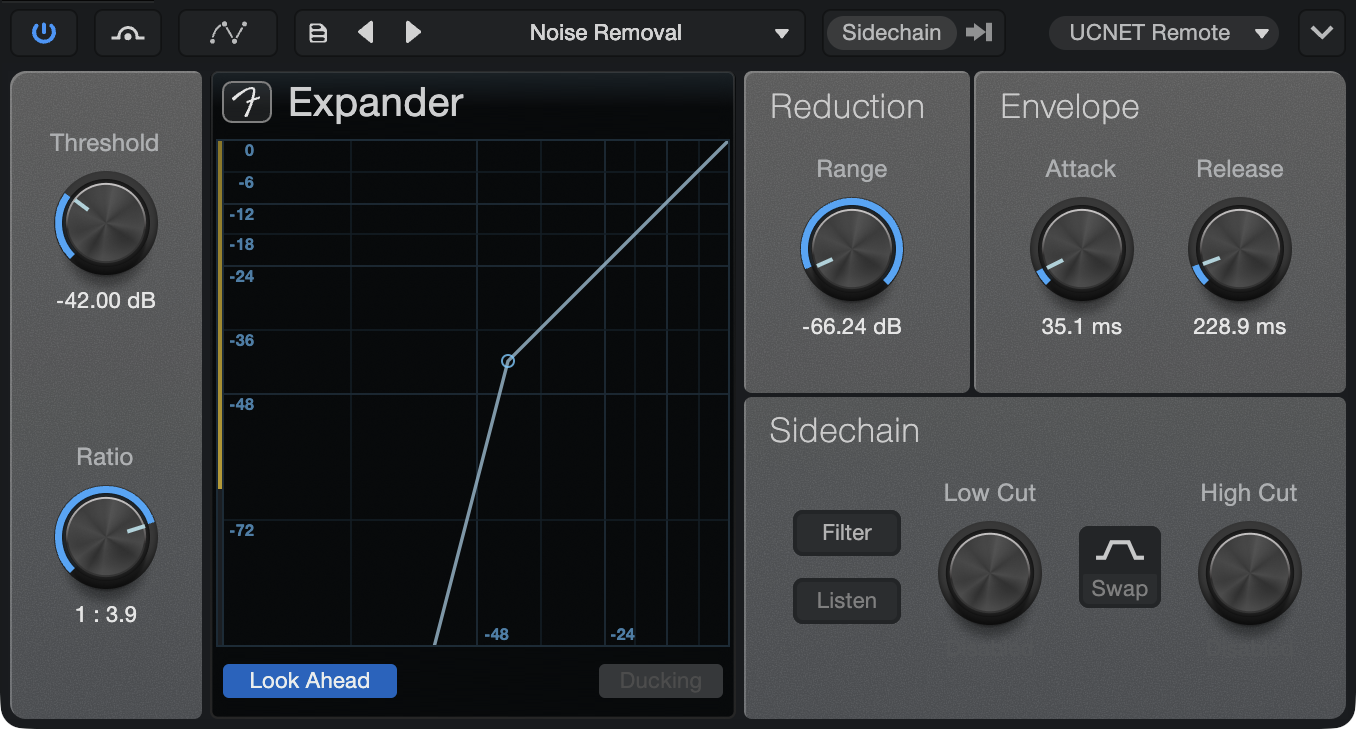
Expander is a fully variable downward expander with range control. It features sidechain capability, including an internal sidechain filter with variable low-cut and high-cut. Expanders increase the dynamic range of a signal such that low-level signals are attenuated while the louder portions are neither attenuated nor amplified. This is effectively the opposite of compression. Use Expander to decrease the levels of unwanted noise or bleed from other sources in the desired signal or to restore dynamic range to a compressed signal.
The following parameters are available for the Expander:
- Threshold: Adjusts the maximum amplitude at which processing occurs. Variable from -60 dB to 0 dB.
- Ratio: Adjust the ratio of the Expander. Variable from 1:1 to 1:20.
- Display:
- Reduction Meter: Displays the maximum reduction amount (-72 dB to +0 dB).
- Expansion Curve: Click the handles in the display to control the curve settings.
- Threshold: Drag the top handle to adjust the Threshold when Auto-Gain is not engaged.
- Ratio/Range: Drag the bottom handle to adjust the Ratio and Range simultaneously.
- Look Ahead: Click to engage/disengage 2 ms Look Ahead function.
- Reduction Range: Adjust the maximum amount of attenuation applied to the signal. Variable from -72 dB to 0 dB.
- Envelope:
- Attack: Adjusts attack time for dynamics processing, reaction speed to falling signal. Variable from 0.1 ms to 500 ms.
Release: Adjusts release time for dynamics processing, reaction speed to rising signal. Variable from 50 ms to 2 s.
- Sidechain (internal):
- Filter: Click to activate internal sidechain filtering (for frequency-dependent gating). Uses 48 dB/octave filters.
- Listen: Click to listen to the filtered control signal of the internal sidechain. This helps find a specific target frequency for the control signal when de-essing, transient damping, etc.
- Low Cut/High Cut: Frequency selection for internal sidechain filters. Low Cut variable from Off to 20 Hz to 16 kHz; High Cut variable from 20 Hz to 16 kHz to Off.
- Swap: Click to swap the frequencies used for Low Cut and High Cut.
- Sidechain (external): Engage by clicking the [Sidechain] button at the top of the effect window to allow other sources to control the Expander. When engaged, you can use the Filter, Listen, Low/High Cut, and Swap controls as described above in the Sidechain (internal) section.
- Sources: Click to display a list of external sidechain channel sources. A checked box indicates the current source. Multiple selections can be made.
- Ducking: Engage this button at the bottom of the effect window to invert the external sidechain source signal.
Gate
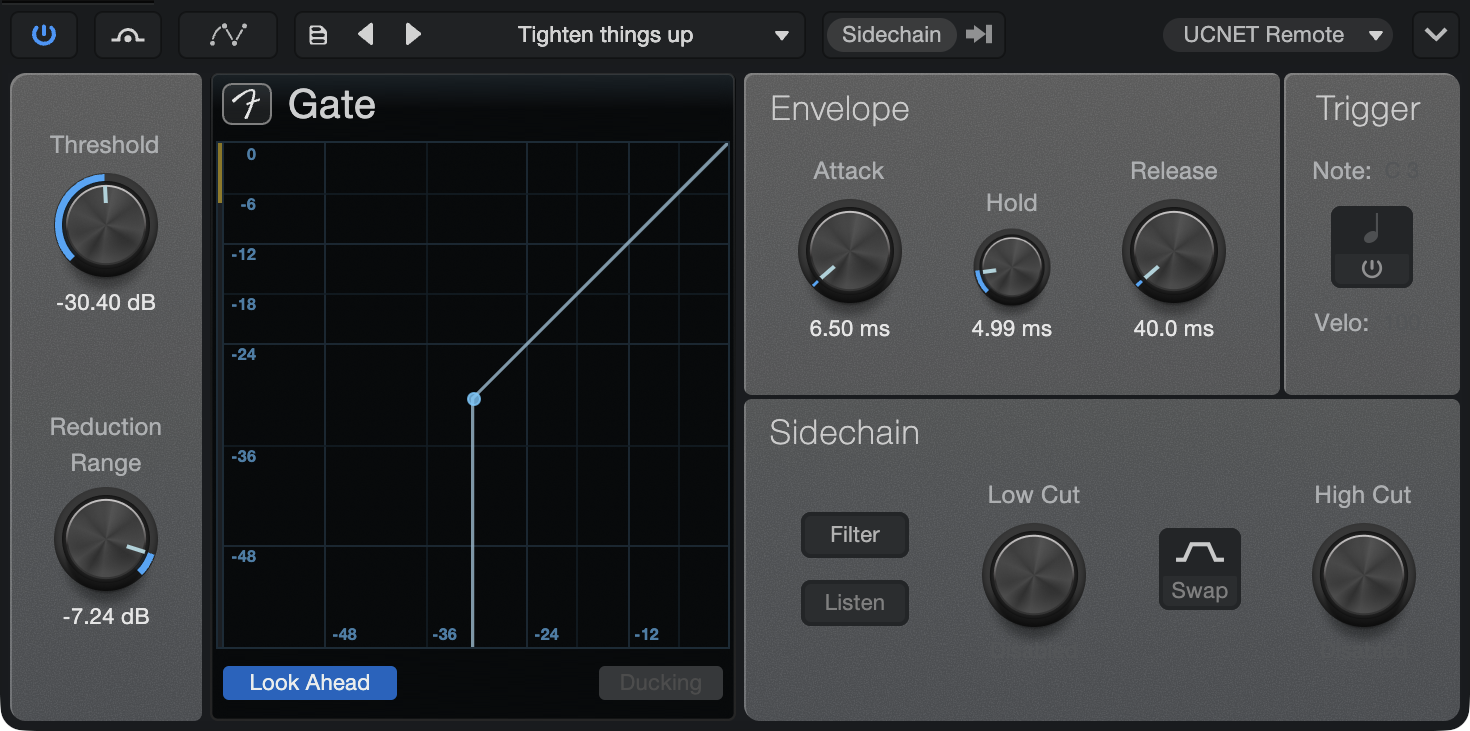
Gate is a noise-gate processor with range control. It features a large display with grid lines to indicate the Threshold setting relative to 0 dB.
It also has sidechain capability with an internal sidechain filter that includes variable low cut and high cut. Gating is an extreme form of expansion that severely attenuates the processed signal or silences it entirely. Use Gate to eliminate unwanted noise or low levels in any Track or to creatively control the level of a given Track using another Track via the sidechain.
The following parameters are available for the Gate:
- Threshold: Adjusts the signal level threshold at which the Gate switches between closed and open. You can also click and drag the dot in the Gate display to adjust the Threshold value. Variable from -60 dB to 0 dB.
- Reduction Range: Adjusts the maximum amount of reduction. Variable from -72 dB to 0 dB.
- Display:
- Reduction Meter: Displays the amount of reduction, from -72 dB to 0 dB.
- Gate Curve: Click and drag the handle in the display to adjust the Threshold.
- Look Ahead: Click to engage/disengage the 2 ms Look Ahead function.
- Envelope:
- Attack: Adjusts the amount of time it takes for the gate to open and let signal through. Variable from 0.05 ms to 500 ms.
- Hold: Adjusts the amount of time the gate is held open once the signal has dropped below the Threshold setting. Variable from 1 ms to 1 s.
- Release: Adjusts the amount of time it takes for the gate to close after the Hold period. Variable from 50 ms to 2 s.
- Trigger:
- Send Trigger Notes: Click to engage sending a trigger when the gate opens. Select the gate as an input on any Instrument Track.
- Note: Click the field and enter a note name, or click-drag the field to adjust the MIDI note to send.
- Velo: Click the field and enter a number, or click-drag the field to adjust the MIDI velocity value to send.
- Sidechain (internal):
- Filter: Click to activate internal sidechain filtering (for frequency-dependent gating). Uses 48 dB/octave filters.
- Listen: Click to listen to the filtered control signal of the internal sidechain. Helps find specific target frequency for control signal when removing narrow-band noise.
- Low Cut/High Cut: Frequency selection for internal sidechain filters. Low Cut variable from Off to 20 Hz to 16 kHz; High Cut variable from 20 Hz to 16 kHz to Off.
- Swap: Click to swap the frequencies used for Low Cut and High Cut.
- Sidechain (external): Engage by clicking the [Sidechain] button at the top of the effect window to allow other sources to control the gate. When engaged, you can use the Filter, Listen, Low/High Cut, and Swap controls as described above in the Sidechain section.
- Sources: Click to display a list of external sidechain channel sources. A checked box indicates the current source. Multiple selections can be made.
- Ducking: Engage this button at the bottom of the effect window to invert the external sidechain source signal.
Limiter²
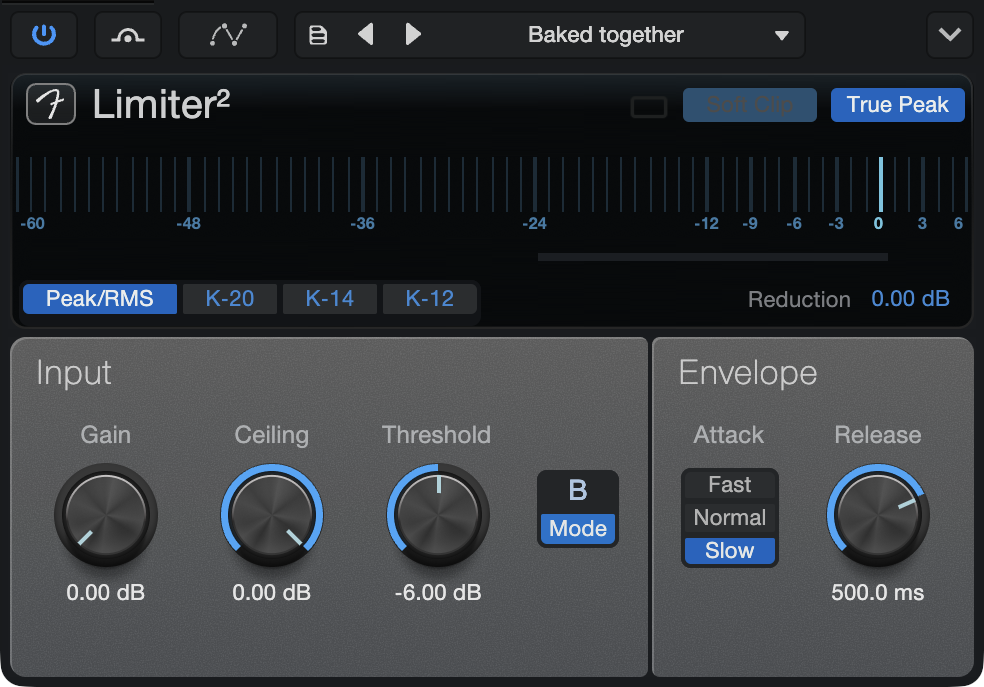
Limiter² is a brickwall limiting processor with optional K-System Metering. Use it to prevent your output signal from clipping or to maximize signals with very dynamic peaks.
The following parameters are available for Limiter²:
- Input:
- Gain: Adjusts the input level into the limiter. Variable from 0 dB to 18 dB.
- Ceiling: Adjusts the maximum output of the limiter. Variable from -12 dB to 0 dB.
- Threshold: is relative to Ceiling. Variable from Ceiling value to 12 dB below Ceiling value. Automatic make-up gain is applied as the Threshold is lowered.
- Mode: Toggles between Modes A and B. With Mode A the limiter is always clean with no distortion. However, in Mode A the limiter response is a bit slower. With Mode B the limiter reacts more quickly to the signal, but depending on the settings a small amount of distortion may occur.
- Envelope:
- Attack: Select Fast, Normal, or Slow attack for the limiter.
- Release: Adjust the amount of time it takes for the limiter to stop processing once the input level falls below the Ceiling setting. Variable from 1 ms to 3 s.
- Metering:
- Peak/RMS: Click to engage Peak/RMS metering.
- K-14, K-20, K-12: Click one of these to select a K-System metering option.
- Reduction: Displays the amount of signal reduction, from -36 dB to 0 dB.
- True Peak: Often the sample that represents the "peak" of a waveform is not truly at the peak, but rather just near it. This can create inter-sample peaks, in which the true outputted amplitude can surge past the limiter threshold. Enable True Peak to detect and protect from these inter-sample peaks.
- Soft Clip: Reduces square wave clipping characteristics when the limiter is clipped. Click to engage Soft Clip.
- Sidechain: Engage by clicking the [Sidechain] button at the top of the effect window to allow other sources to control the limiter.
- Sources: Click to display a list of potential sidechain channel sources. A checked box indicates the current source. Multiple selections can be made.