Pro EQ3
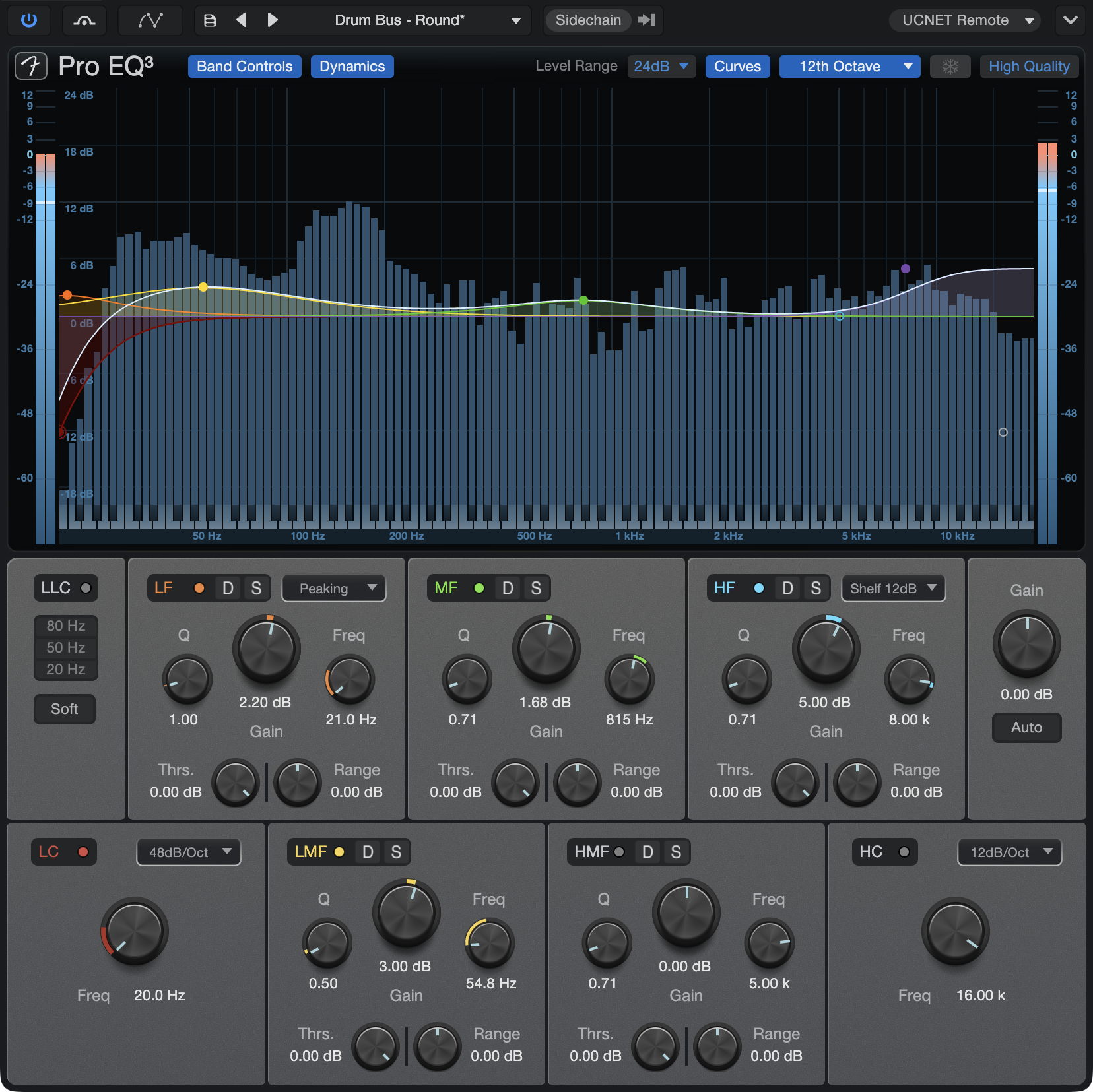
Pro EQ3 is an eight-band parametric equalizer A filter or group of filters that adjusts the volume level of a frequency, or range of frequencies, within an audio signal.
Fender Studio Pro includes the Pro EQ native effect. with optional spectrum metering; variable low-cut, high-cut, low-frequency, and high-frequency multimode filters; band soloing; dynamic mode controls; and an optional Auto-Gain output gain setting. Use Pro EQ3 on any mono or stereo Track to accurately apply highly musical equalization to any signal.
A filter or group of filters that adjusts the volume level of a frequency, or range of frequencies, within an audio signal.
Fender Studio Pro includes the Pro EQ native effect. with optional spectrum metering; variable low-cut, high-cut, low-frequency, and high-frequency multimode filters; band soloing; dynamic mode controls; and an optional Auto-Gain output gain setting. Use Pro EQ3 on any mono or stereo Track to accurately apply highly musical equalization to any signal.
The following parameters are available for Pro EQ3:
- Input Meter: Peak/RMS meter shows the unmodified input signal level. The RMS level is represented by a white horizontal line.
- Display: Click-and-drag frequency-band handles in the display to edit Gain (up/down) and Freq (left/right) parameters. If you click on a handle, the mouse wheel edits the Q. (If you don’t have a mouse wheel, adjust the desired Q knob or type in a value below the knob.) Note that LLC frequency must be selected with the buttons. Holding [CTRL/CMD] before clicking and dragging a handle will allow you to adjust the dynamics Range by using the mouse.
- Band Controls: Click to show/hide the bottom half of the Pro EQ3 window. This is where all controls, buttons, and options for each EQ band are located.
- Dynamics: Click to show/hide the Dynamics controls (Thresh/Range) for all frequency bands.
- Level Range: Click this field to select one of three Level Range options for the Pro EQ3 display: 6 dB, 12 dB, or 24 dB. Below these options, the max and min dB of the Analyzer Range can be adjusted as well (from -120dB to 24 dB). This affects the vertical scale within the display only; it does not affect the audio output.
- Show Curves: Click to display all EQ curves or only their combined curve, which is white. When the individual curves are hidden you can hover over a band-handle to view its curve, and as any band is adjusted its curve is displayed temporarily.
- Spectrum Display Type: Click this field to select one of four output-spectrum metering modes: Third Octave, 12th Octave, FFT Curve, or Waterfall. Select None to deactivate spectrum metering.
- The bands in the 12th Octave meter correspond to the 12 notes in each octave on a piano keyboard. A keyboard graphic below the spectrum display helps identify the pitch or note value of a given signal.
- A second signal can be routed into the spectrum display using the included Sidechain input, for comparison.
- The Spectrum display is fixed at 20 Hz to 20 kHz and -24 dB to 24 dB.
- Sidechain Spectrum Peak Hold: The snowflake button is only available for the Sidechain input when the FFT Curve is selected. When engaged, the highest peaks of the sidechain input spectrum are held indefinitely. To clear or release the peak curve, click the snowflake button again.
- High Quality: Click to engage High Quality mode, allowing more accurate equalization. This is achieved using 2x oversampling and requires more computer processing power. Note that when High Quality is enabled, due to oversampling, the signal is slightly altered, even when all controls are set to neutral settings.
- Sidechain: Toggle on to use the spectrum analyzer in Pro EQ3 to display the characteristics of another Channel (routed in using a send to Pro EQ3's Sidechain input). This can come in handy for comparing the frequency makeup of two channels you're trying to match or balance against one another.
With Sidechain mode on, Pro EQ3’s frequency bands can employ Dynamic Mode, creating reactive EQ adjustments based on the Input from the Sidechain source. Both Sidechain and at least one frequency band’s Dynamic Mode must be active to use this functionality; it’s covered in further detail below.- Sources: Click to display a list of potential sidechain channel sources. A check box indicates the current source. Multiple selections can be made.
- Bands: Click Activate button to engage/disengage each band.
- LLC: Phase-linear Low-cut filter.
- 80 Hz, 50 Hz, 20 Hz: Select frequency at which filter cut begins.
- Soft: When engaged, this band has a 12 dB per octave slope. When disengaged, the slope is 24 dB per octave. This affects the shape of the filter curve.
Note: High-quality phase-linear filters like the LLC band are CPU-intensive and should be used with caution. If CPU load is an issue, try using a conventional low cut filter instead. Another option is to render the insert FX using Track Freeze, which preserves the FX settings in case changes are needed later. Find this at Track/Freeze, or [Right]/[Ctrl]-click the Track in the Track List and select Freeze to Rendered Audio.
- LC, HC: Low-cut and high-cut filters.
- Freq: Adjust point at which filter cut begins.
- Slope: Select from 6, 12, 24, 36, and 48 dB per octave. This affects the shape of the filter curve.
- LF, HF: Selectable low-frequency and high-frequency, shelf or peaking filters.
- Q: Adjust the Q of the frequency band. Q = the ratio of center frequency to bandwidth. When the center frequency is constant, Q is inversely proportional to bandwidth (i.e., higher Q = narrower bandwidth).
- Gain: Attenuate/amplify frequency band.
- Filter Mode: Select from Peaking and Shelf, with 6, 12, or 24 dB per octave slope.
- Solo: Click to solo the currently-selected active band. LF and HF band soloing respects the bands’ peak/shelf setting.
Dynamic Mode is supported on LF, LMF, MF, HMF, and HF bands. When engaged, the selected band’s level adjustments will be triggered dynamically as the inbound signal surpasses the amplitude threshold.
Threshold: Set the signal level at which the dynamic adjustment will trigger. Variable from 0 to -90 dB.
Amplitude: Set the amount of dynamic adjustment applied. Variable from -24 to +24 dB.
Monitor the small reduction meters for a visual indication of the amount of reduction applied per band.
- Freq: Adjust the center frequency of the band.
- LMF, MF, HMF: Peaking filters.
- Q: Adjust the Q (center-frequency:bandwidth) of the frequency band.
- Gain: Attenuate/amplify frequency band.
- Freq: Adjust the band center frequency.
- LLC: Phase-linear Low-cut filter.
- Auto: Click to engage Auto-Gain, which adjusts Pro EQ² output level to match the original input-signal power (guarantees a 0 dB input signal equals a 0 dB output signal).
- Output Meter: Peak/RMS meter; RMS level is represented by a white horizontal line.