Effect Micro Views
Micro Views are small, expandable control panels within the Insert Device Rack that allow control over the critical parameters of each effect. Using the Micro View in the Insert Device Rack often prevents having to open the entire effect interface, and it also allows easy monitoring of compression, gating, splitters, and other effects. Try Effect Micro Views in both the small and large Console views.
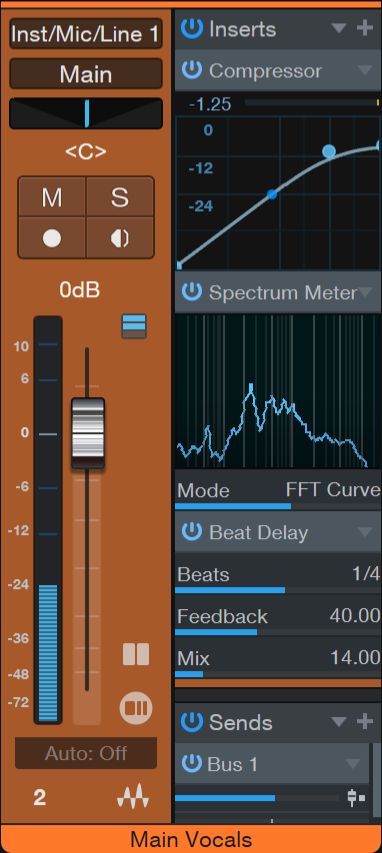
To expand the Micro View for any built-in effect, open the Console and double-click on the effect in the Insert Device Rack. The Micro View expands downward, revealing certain parameters of the effect. Not all parameters of each effect are available in the Micro View, only those you are likely to change frequently.
In the large Console view, notice the arrows at the very top and bottom of the Insert Device Rack. Click on these arrows to scroll up and down in the Insert Device Rack to view any number of open Micro Views. To collapse any Micro View, double-click on the effect name at the top of the Micro View. Click onto built-in effects once to open the Insert effect editor window.
A right-click/drop-down menu is available from every Plug-in Micro View. Options include:
- Edit: Opens the Plug-in Editor.
- Collapse: Expands the Micro View to reveal parameters.
- Rename: Re-name the Plug-in.
- Bypass: Bypasses the Plug-in.
- Favorite: Tags the Plug-in as a Favorite in the Browser.
- Store Preset: Saves the current parameters as a Plug-in Preset.
- Disable: Disables the Plug-in.
- Enable Plug-in Nap: Activates Plug-in Nap (only available if Plug-in Nap is enabled).
- Remove: Removes the Plug-in.
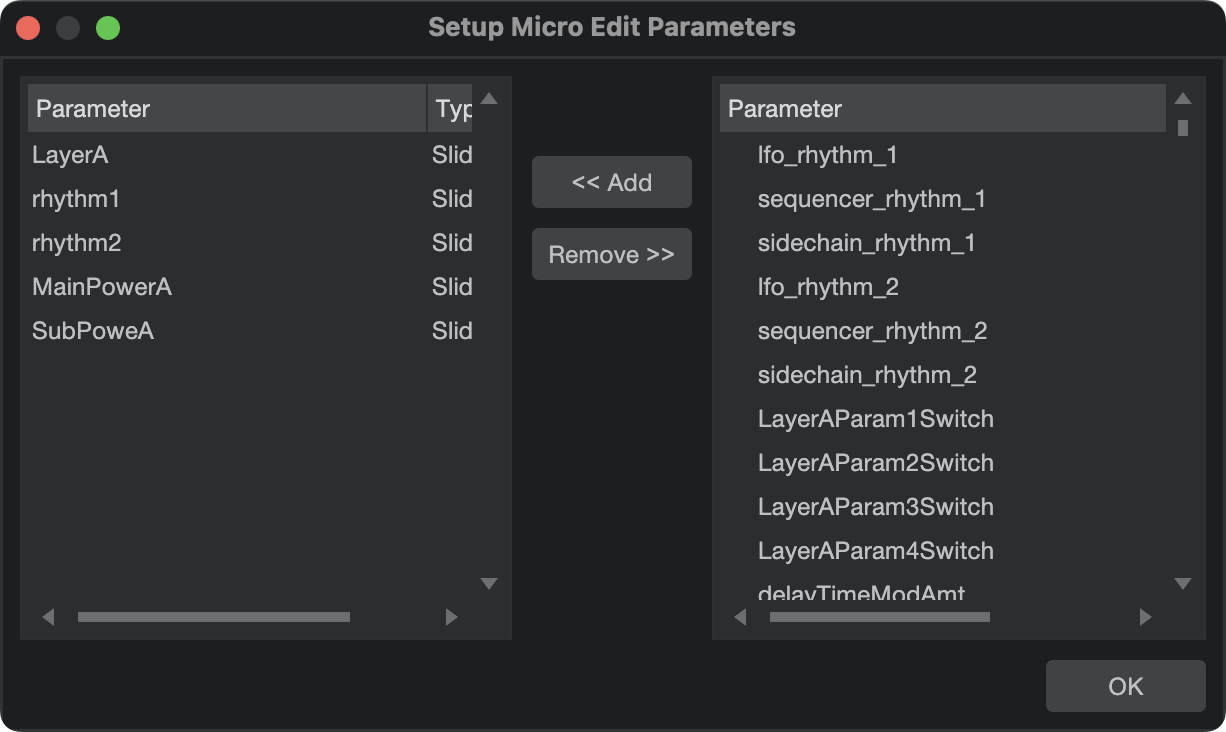
- Set Up Micro Edit Parameters: (Exclusive to third-party plug-ins) Select this to bring up a configuration menu which allows you to select which parameters are editable from Micro View. The default setting is for the first five parameters. The parameters on the left side of the interface can be dragged and dropped to your desired order.