Mastering
Multiband Dynamics
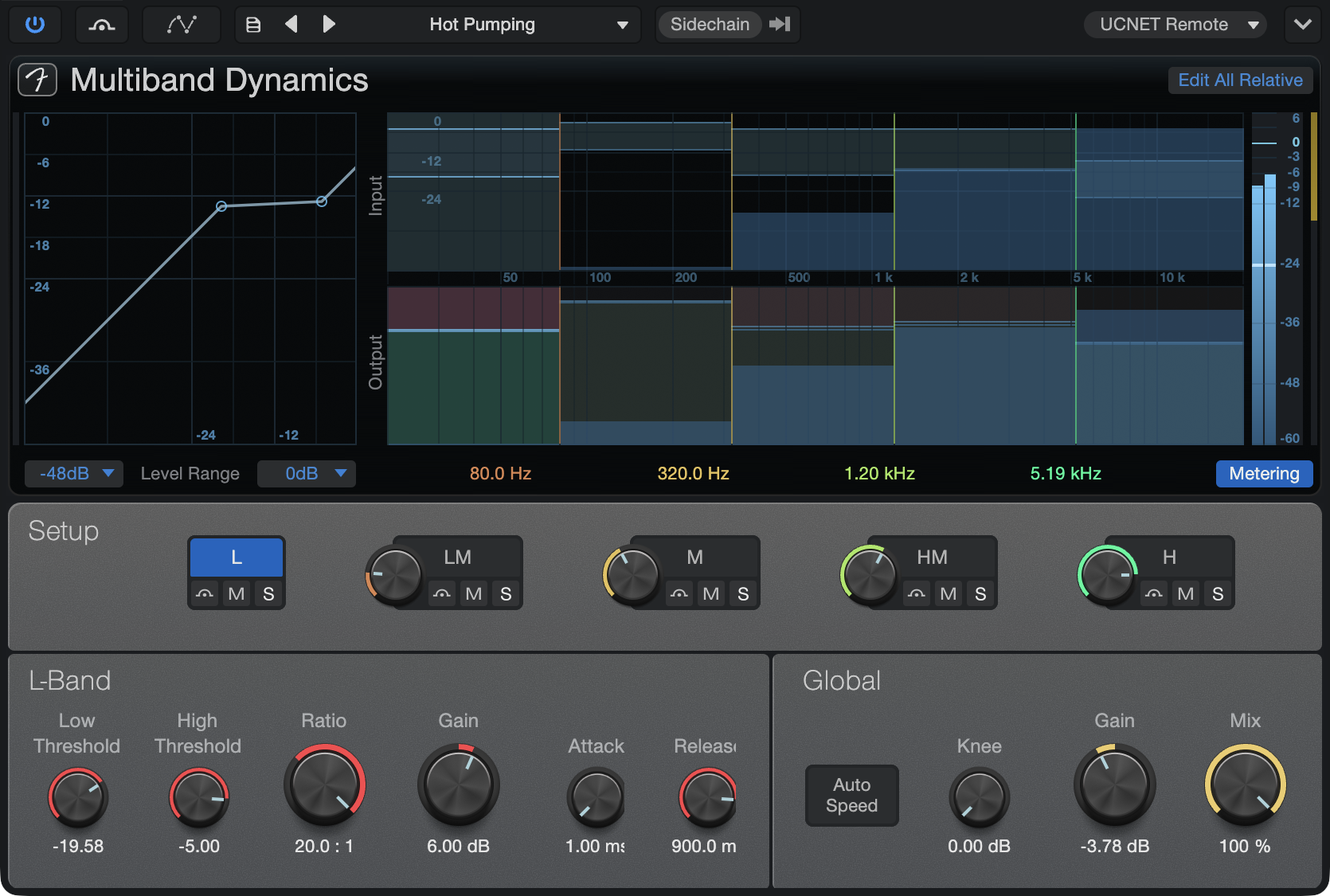
Multiband Dynamics is a compressor/expander with five completely independent compression/expansion bands, optional simultaneous adjustment over all bands, and multiband metering. Use it to reduce unwanted signals or banded noise and to emphasize or limit instruments. In practice, this effect can function as a dynamic equalizer or can be used for mastering compression on a complete mix.
This type of compression is regarded by many as an art form, and it can be difficult for beginners to use. We recommend you load the factory presets as a starting point and learn how Multiband Dynamics works by using it.
The following parameters are available for Multiband Dynamics:
- Global Display: Float mouse in display to view parameter-editing Tooltips above the display.
- Input: Horizontal lines represent Low and High Threshold for dynamics processing.
- Output: Horizontal lines represent transformation of the High and Low Thresholds using Gain and Ratio. A signal at the Low Threshold on the input would be at the low level on the output.
- Color Coded Output Gain: Red means attenuation, green means amplification.
- Mix: This control lets you set the mix between affected and non-affected (dry) signals, allowing for parallel processing.
Dynamic changes occur only between Low/High Threshold and Low/High Gain. If the signal is above or below these settings, only linear gain is applied.
- Bands:
- L, LM, M, HM, H: Low, Low Mid, Mid, High Mid, High.
- Frequency Knob: Adjust crossover frequency between bands. You must have at least one octave between adjacent bands.
- M, S, Bypass: Mute, Solo, and Bypass engage buttons for each band.
- L, LM, M, HM, H: Low, Low Mid, Mid, High Mid, High.
Editing the crossover frequencies in the display moves other bands when the bandwidth is below one octave. Editing using automation is limited to a one octave bandwidth. Moving the crossover to limit frequencies disables bands.
- Metering:
- Range Low: This is the lowest amplitude to be displayed in band meters. Click to select from -120 dB, -80 dB, -48 dB, -24 dB, or -12 dB.
- Range High: This is the highest amplitude to be displayed in band meters. Click to select from +12 dB, 0 dB, -12 dB, -24 dB, or -48 dB.
- Metering On/Off: Click to engage/disengage metering for all bands.
- Edit All Relative: Click to engage/disengage relative dynamics-settings editing for all bands. When engaged, changing dynamics settings for the selected band changes the same settings for all bands by the same amount.
- Auto Speed: Click to engage/disengage Auto Speed for the dynamics for all bands. Sets adaptive Attack and Release times for all bands globally.
- Dynamics: Click on any band to select it and view/edit dynamics settings for that band.
- Dynamics Display: Click on handles in display to adjust dynamics settings.
- Thresholds: No dynamics processing occurs for signals outside of the Threshold settings—only gain amplification/attenuation.
- Low Threshold: Adjusts the lower limit for signal to be processed. Variable from -60 dB to 2x the knee length.
- High Threshold: Adjusts the upper limit for signal to be processed. Variable from 0 dB to 2x the knee length.
- Ratio: Adjusts dynamics processing ratio. Variable from 1:10 (gating) to 20:1 (limiting).
- Gain: Adjusts output gain. Variable from -36 dB to 36 dB.
- Attack: Adjusts attack time for dynamics processing. Variable from 1 ms to 200 ms.
- Release: Adjusts release time for dynamics processing. Variable from 4 ms to 200 ms.
Dynamics speeds are adapted to provide a comparable smoothness at the same setting for expansion and compression, so expansion is slightly slower than the shown length.
- Sidechain: Engage by clicking the [Sidechain] button at the top of the effect window to allow specific sources to control the Multiband Dynamics processor.
- Sources: Click to display a list of potential sidechain channel sources. A checked box indicates the current source. Multiple selections can be made.
Tricomp™
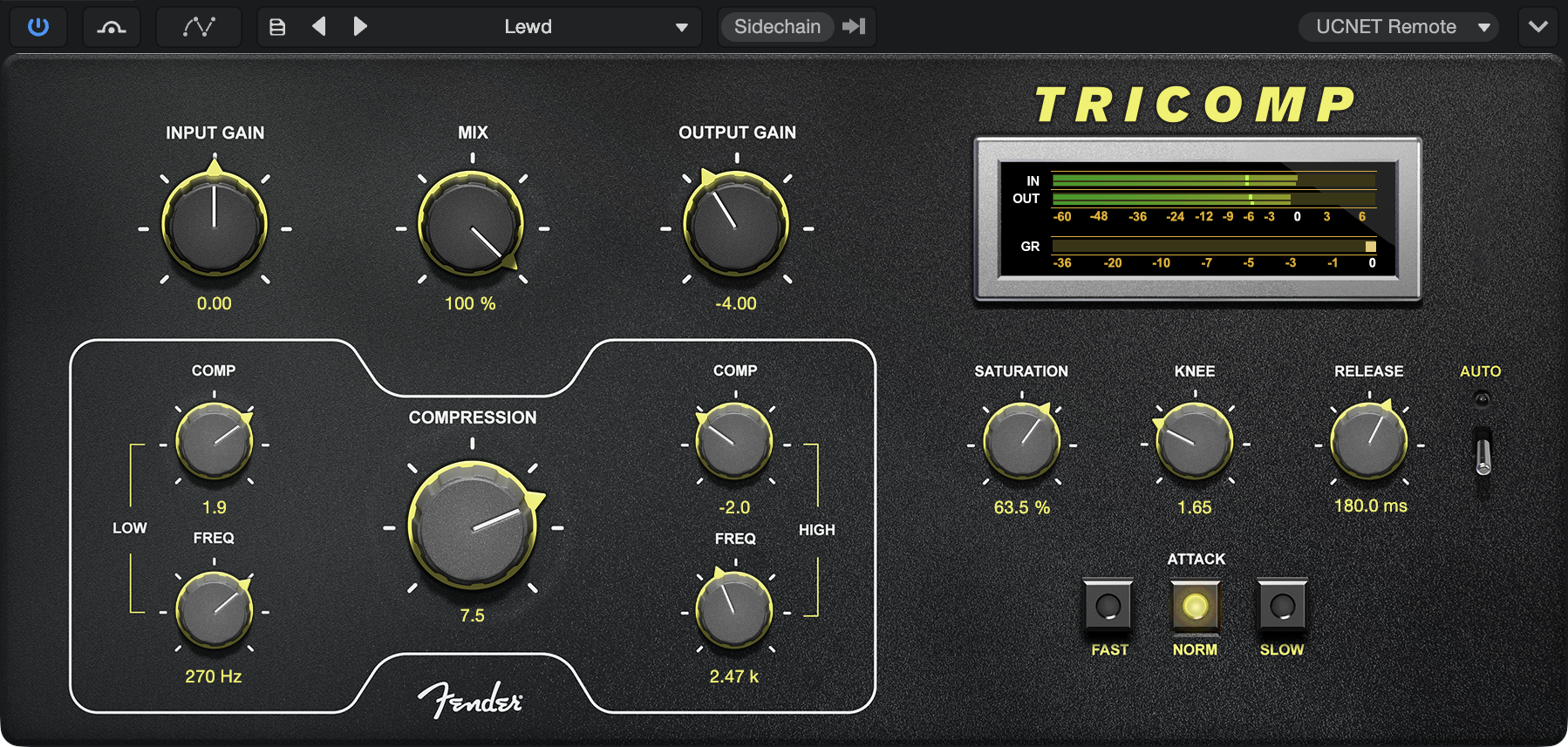
Tricomp is a three-band compressor. It provides automatic threshold and ratio settings for all three bands and relative control for the low and high bands, as well as switchable automatic attack and release controls. Tricomp can be used to finalize your mix or to add brilliance or punch to frequency-rich signals.
The following parameters are available for Tricomp:
- Input Gain: Set overall Input Gain to the compressor.
- Mix: Adjust the mix between dry (unaffected) and wet (effected) signals, for parallel compression effects.
- Low: Adjusts the relative amount of compression to be applied to the Low compression band. Variable from -5 to 5 depending on the Compress setting.
- High: Adjusts the relative amount of compression to be applied to the High compression band. Variable from -0.50 to 0.50, depending on the Compress setting.
- Low Freq: Adjusts the upper corner frequency of the Low compression band. Variable from 80 Hz to 480 Hz.
- High Freq: Adjusts the lower corner frequency of the High compression band. Variable from 800 Hz to 12 kHz.
- Input Meter: Displays Tricomp’s input level.
- Reduction Meter: Displays the amount of signal reduction.
- Compression Amount: The relative amount of compression to be applied to all three compression bands. Variable from 0 to 10.
- Output Meter: Displays Tricomp’s output level.
- Knee: Adjusts the distance/curve of the compressor knee. Variable from 0 dB (hard knee) to 6 dB (soft knee).
- Gain: Set overall output Gain. Variable from -18 dB to +18 dB.
- Attack: When Auto is not engaged, these buttons select the compressor attack time. Fast Attack is 0.1 ms; Slow Attack is 10 ms.
- Release: When Auto is not engaged, this adjusts the compressor release time. Release is variable from 1 ms to 300 ms.
- Auto: Click to engage adaptive settings for the compressor attack and release times, based on signal content.
- Saturation: Saturation recreates the saturation sound of famous leveling amplifiers using State Space Modeling. Variable from 0 to 100%.
- Sidechain: Engage by clicking the [Sidechain] button at the top of the effect window to allow specific sources to control the Tricomp processor.
- Sources: Click to display a list of potential sidechain channel sources. A checked box indicates the current source. Multiple selections can be made.