The Loops Tab
The Loops tab lets you locate and explore audio and music loop content made for Fender Studio Pro in the Browser, with intelligent sorting to assist you in finding the right loops quickly and easily.
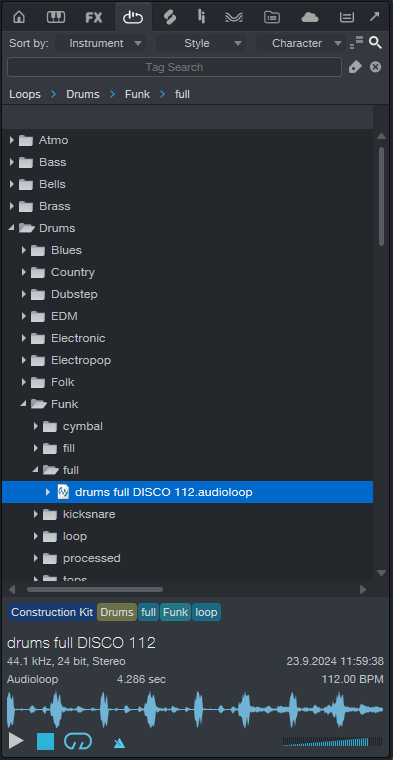
Click on the Loops tab in the Browser or press [F8] on the keyboard to browse through any installed loop content.
Sorting Loops
The Loops tab offers a three-tiered sorting system. At the top of the Loops tab window, you'll see Sort by... followed by three category selectors.
You can choose to sort by any of the following criteria:
- Style, Instrument and Character: Sorts your loops into folders corresponding to the Style, Instrument, and Character tags each loop is associated with. This lets you quickly locate specific types of loops based on your needs.
- Type: Sorts your loops into folders corresponding to their file type.
- Product: Sorts your loops into folders corresponding to the products or bundles they are part of.
- Vendor: Sorts your loops into folders corresponding to the vendor that made them.
Using the three sorting category selectors, you can structure the way loop content is shown. The first sorting category sets what you see at the top level of the Loops tab. For example, set to Style, you'll see loops categorized in folders corresponding to their Style tag settings.
The second sorting category sets what you see when you open a folder in the list created by the first sorting category. For example, with the first category set to Instrument and the second set to Type, you'll see a list of loops in folders corresponding to their Instrument tag settings. Expanding one of those folders show a list of its content, sorted by file Type.
The same operating model extends to the third sorting category, which lets you refine how loops are displayed when you're looking two folder levels deep in the list of loops.
Resizing the Browser
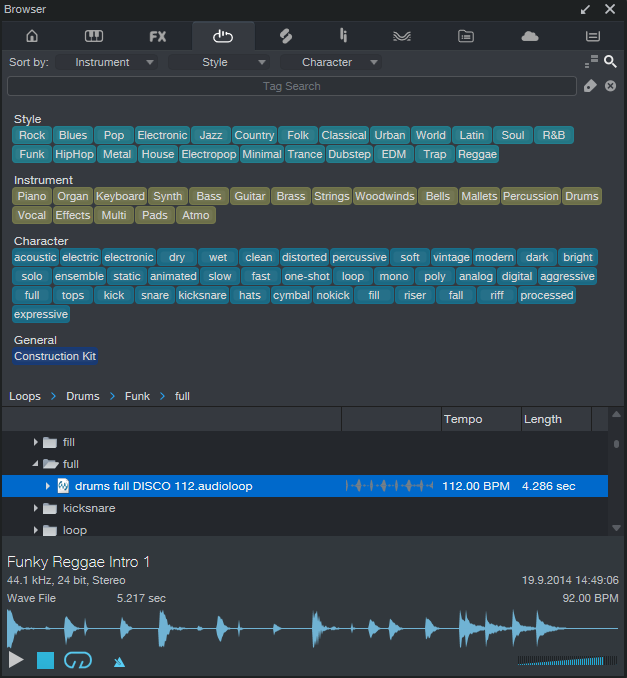
When you expand the width of the Browser, detached or not, additional columns appear that provide more information about each loop. This includes a waveform and information about the loop’s Tempo, Length, Speaker Format (mono or stereo), Sample Rate, and Bit Depth:
Importing Loops into Your Session
Audio and music loops can be dragged right into your Session from the Browser, with the loop tempo perfectly aligned. For more information on working with loops, see Audio Loops and Music Loops.