Sync to Video
Once the video has been imported, as long as the Online button in the Video Player is engaged, Session and video playback will be in sync. When you locate the timeline cursor while stopped or during playback, the video adjusts to the correct frame.
When video playback starts, a small amount of data needs to be pre-loaded. Should there be a resulting timing offset between the video and Session playback, Fender Studio Pro syncs the video during playback. This may cause the picture to jump a little after start, which is normal. For a smooth start of video playback we recommend that you stop, locate, and then start.
Frame Rates
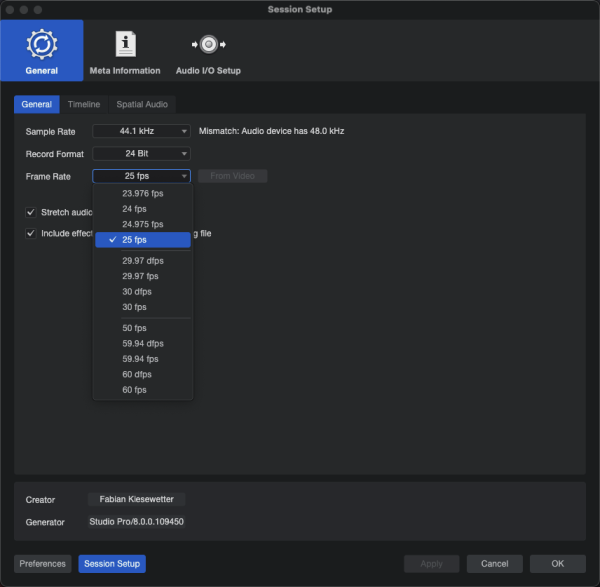
In common practice, it is good for you to know the frame rate of the video you are working with, and to set that frame rate in the Session/Session Setup/General menu. You may choose from the thirteen Frame Rates shown above. Ideally, you should have a reference timecode burned into the video itself so that you can compare the Session frame position with the video timecode position and ensure accurate frame sync.
Using Follow Edit Position with Video
It is common to use markers to denote hitpoints in the video; that is, time positions where the sound should sync closely with the video. Refer to Using the Marker Track for information on how to use markers. When adjusting the position of a marker, it is possible to have the playback position, and thus the current video frame, follow the marker position. To do this, enable Follow Edit Position in the toolbar, next to Follow Session. This helps you accurately place markers to use as hitpoints while viewing the exact frame to which the marker corresponds. Similarly, Follow Edit Position helps when trying to sync Event or Note position with video.
Bar and Time Offset
Fender Studio Pro offers two options for setting up an offset for your timeline. These allow you to set a time offset relative to the musical (Bars,) and timecode (Frames), which can be reset to zero at any point in your Session, independent of SMPTE. Options include:
- Set Bar Offset to Cursor
- Set Time Offset to Cursor
Set Bar Offset to Cursor and Set Time Offset to Cursor can be accessed via the Session drop-down menu, or the contextual menu when right-clicking inside the Ruler. You can also trigger it from a Keyboard Shortcut or Macro.
Set Frames at Cursor…
Set Frames at Cursor… can be used to assign a desired frame value to the current location of the playback cursor.
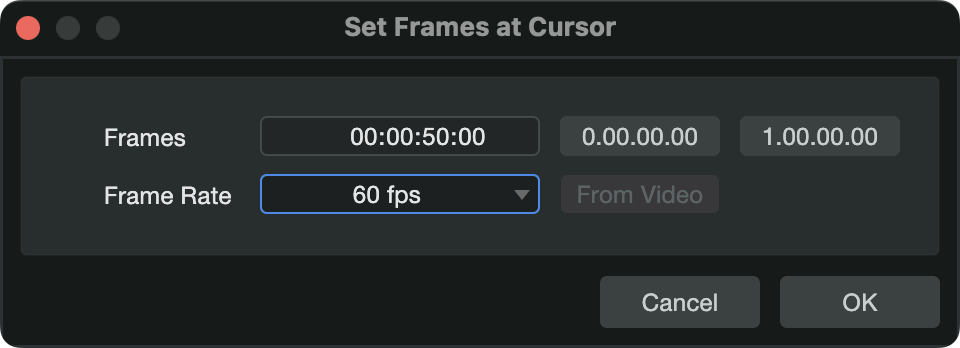
Frames Enter the desired frame number for the current location of the playback cursor.
Frame Rate Enter the desired frame rate here.
From Video Click this button to match the (supported) frame rate of the Video Event currently aligned with the playback cursor position.
Video Metadata
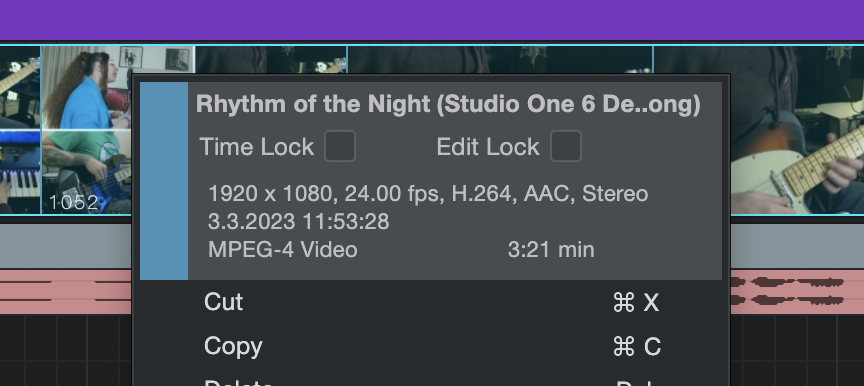
Video metadata, including pixel dimensions, framerate, codec, and more, can be found atop the contextual menu when right-clicking a Video Event or at the bottom of the Browser when the video clip is selected in the Pool.