Saving Options
Fender Studio Pro offers you multiple ways to save the work in progress of your documents (Sessions, Shows, or Mastering Projects), backup your files, automate your work saves, and export to multiple formats. Each is a different tool for a different job.
Save
Saves the active document, overwriting it with the original name and filepath. All related media (Audio clips, MIDI, etc.) are stored in the document’s Media subfolder and linked to the .Song, .Show, or .Project file.
Save As…
Saves the current document with the options to choose a new file path and/or a new filename. Save As… only saves the .Song, .Show, or .Project file to a new location, and does not create a new Media subfolder or copies of linked media like Audio clips and MIDI. Media is linked from this new document to its original file path location. This new document file becomes the active working document in Fender Studio Pro.
The Save As… command can also be used for exporting your document to various formats including:
-
AAF File: Advanced Authoring Format. More details here.
-
Capture Session: A proprietary PreSonus format for use with PreSonus Capture.
-
MIDI File: a .MID file. More details here.
-
OpenTL: Tascam’s Open Tracklist format.
-
Zip File: Compresses your entire document and all of its related media into a single Zip file for easy sharing and backup. Unused files are excluded from the Zip, as are alternate Song Versions. More info on Zip Export here.
Save to New Folder
Saves the current document with the options to choose a new file path and/or a new filename. Save to New Folder saves the .Song file to a new location and creates a new Media subfolder and copies of linked media. This is a good way to create a new “working copy” of all of the files required to continue work on a Session, Mastering Project, or Show. In addition, all unused media files are not included in this new folder to save on disk space.
This new document file becomes the active working document in Fender Studio Pro.
Save New Version
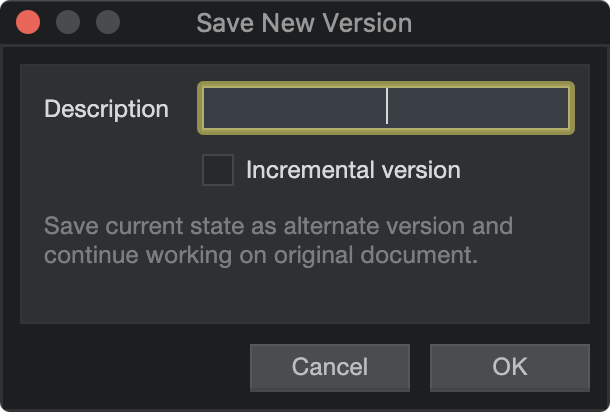
A special save option that gives you the option to create an alternate version of a document while continuing your work on the original. Save New Version will store a new file in your original working folder, and will not create a new Media subfolder.
Incremental version:
-
Tick this box to save your document as an incremental version and update your document file and continue to work on the new incremental version.
-
Leave unticked to save your document as an alternate version located in your documents History subfolder and continue working on the original document.
Use the “Restore Version” option from the File menu to access previously saved Versions of a currently open document.
Save as Template
Saves your .Song, .Project, or .Show file to Fender Studio Pro’s “templates” subfolder, causing it to appear in the New Session or New Show menus under the “User” tab. Media subfolders are not copied to this location.
Convert To
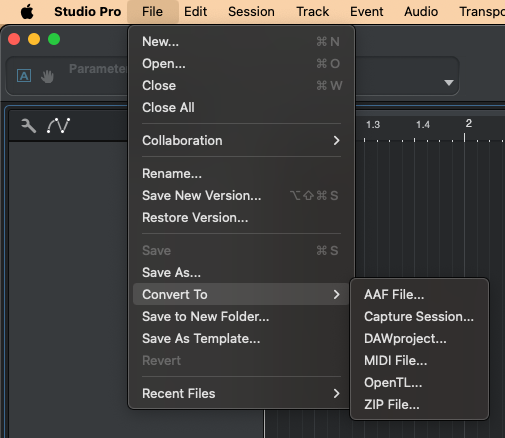
Convert To allows you to quickly save your currently-opened Fender Studio Pro document (Session, Show, or Mastering Project) to another file format.
Options include:
-
AAF File: Advanced Authoring Format. More details here.
-
Capture Session: A proprietary PreSonus format for use with PreSonus Capture.
-
MIDI File: a .MID file. More details here.
-
OpenTL: Tascam’s Open Tracklist format.
-
Zip File: Compresses your entire document and all of its related media into a single Zip file for easy sharing and backup. Unused files are excluded from the Zip, as are alternate Session Versions. More info on Zip Export here.
Autosave
Autosave is located in Fender Studio Pro’s Preferences under Locations >> User Data. You can set the frequency with which it automatically runs a typical Save command as described above. Note that Autosaves are not performed during playback to avoid producing any audible artifacts or interruptions.
Options include:
-
Used cached plug-in data on save: Tick this box if you would like to avoid Fender Studio Pro requesting to save your plug-in settings on each Autosave. When this box is ticked, Fender Studio Pro will refrain from querying plug-ins to for all of their settings on each Autosave, and instead their last state will be used from thecache. When using plug-ins that have a lot of parameters, this can decrease the saving time of your documents.
-
Ask to copy external files when saving Session: Tick this box if you would like to be prompted to make copies of linked media when Autosave runs.
Ask to Copy External Files when Saving Document
This option, located in Fender Studio Pro’s Preferences under “Locations,” will prompt Fender Studio Pro to ask if you would like it to make local copies of any external files in the save operation.
In this context, “External Files” are any files that are not already a part of the current document’s folder structure. A common example of External Files could be a new sample pack that you excitedly saved to your desktop and brought into Fender Studio Pro before filing it with your other samples.
This also allows you to move a document’s folder without worrying about the inclusion of content stored in other locations.
Ask to Copy External Files works with Sessions, Mastering Projects, and Shows.