Score Editor Overview
Click the "treble clef" Score View button [ ] to access the Score Editor. In this view, notes can be viewed on a musical line (or "staff") and entered using a mouse and a computer keyboard, or external controller in real-time or step recording modes. Musical symbols for articulation and dynamics can be added, and these symbols also enhance the playback of the associated Track.
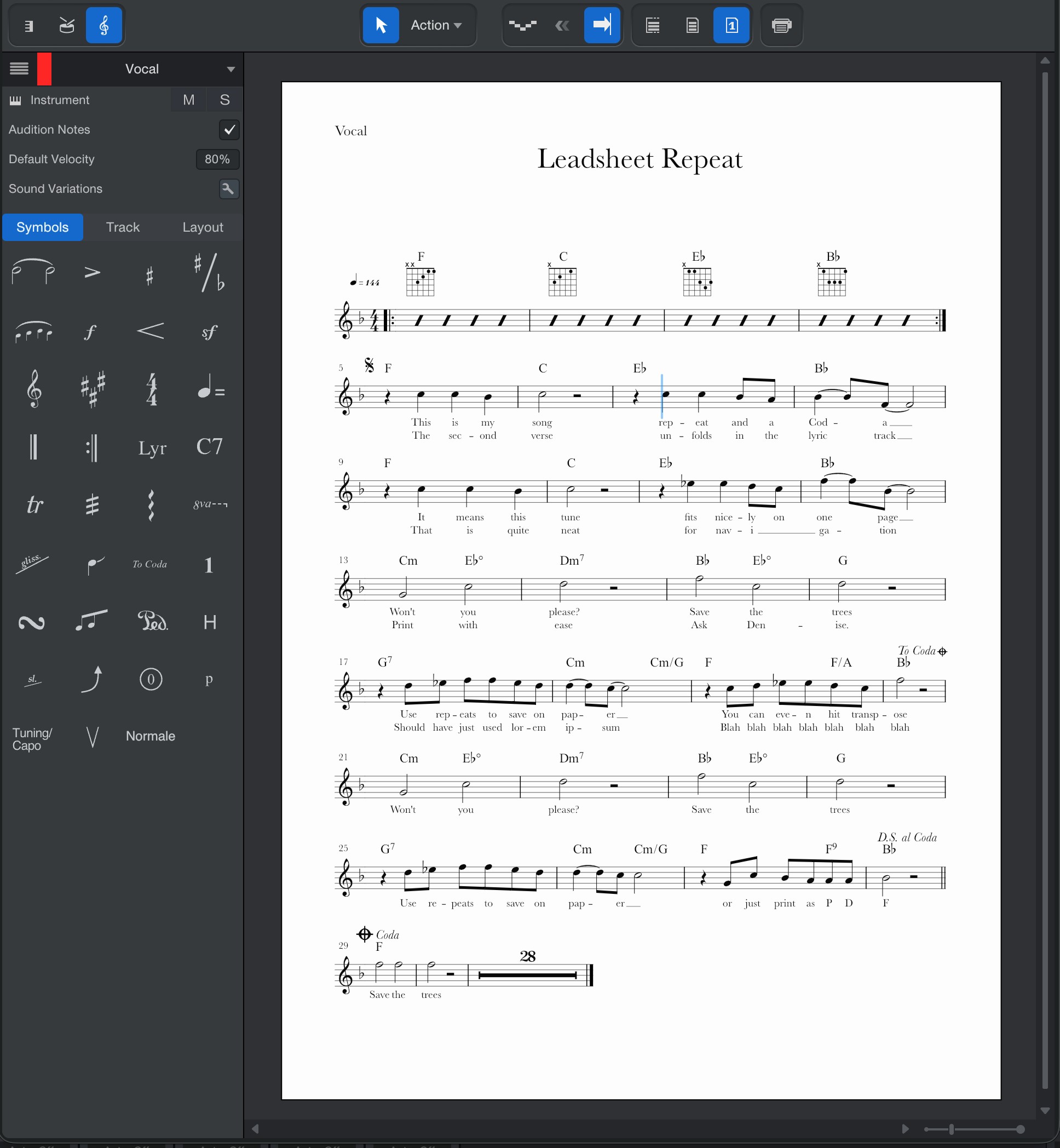
The Score automatically scrolls during playback, and while editing, it jumps instantly to any place you click on the timeline. The window can be detached, so you can look at it side-by-side with the same note data in Piano view or Drum view.
Grand staff for keyboard instruments is included, which shows two staves for a single instrument. This allows notes to be allocated between the left and right hands, and you can move pitches between the staves once they have been entered. A Tablature Staff Type is available in two variants: Tablature and Standard + TAB. These can be used for various fretted instruments and include support for various alternate tunings of guitars, basses, banjoes, and more. Note entry, note editing, and re-arrangement of chord fingerings are all possible while using the Tablature Staff Types. Finally, there are special staves for drumsets and single line percussion instruments.
Note pitches are shown with the enharmonic "spelling" that conforms to the current key signature (for example, in the key of C minor, an Eb is shown rather than a D#). Proper formatting is automatic for note spacing, beaming, stem length and direction, ledger lines, etc. Manual formatting options include trills, 8va/8vb lines, clefs for various instruments, and more.
Session Meta-Information can be entered at Session/Session Setup/Meta Information, after which the Title, Album, and Songwriter/Composer for the Session appear at the top of the Score (Full Score and Single Track page layouts only).
Many options are provided for viewing and printing a Score, including notation size, staff spacing, and bar numbers, to name a few. Each feature is described in the following sections.
Keep in mind that the Score Editor displays and prints only the region between the Start and End markers. Anything beyond those markers is not included.
How the Views Interact
When note pitch or duration are changed manually in Piano, Drum, or Score view, they also change in the others. However, musical symbols added to the Score affect playback but don't affect how notes are displayed in Piano and Drum views (with the exception of adding a sharp or flat sign to a note, which changes its pitch).
Key Signatures and Score View
The key signature of the current measure determines how the pitches are displayed on the staff in terms of their enharmonic spelling (e.g., whether a pitch is shown as an Ab or G#). The key signature also dictates what you will hear when you move notes up and down diatonically, either with the mouse or the up and down arrow keys.
There are a couple of ways to set a key signature for the Session: you can click the [Key] button in the Transport and select the key of your choice from the pop-up selector that appears. Alternatively, you can adjust the key signature directly from the score. See Key and Time Signature for more information. It can also be derived automatically from an Instrument Part or an Audio Event as described in Getting Started with the Chord Track. If the Session changes key signatures, see Signature Track for more information.
Time Signatures
The time signature of the Session is automatically part of the Score. Time signature changes can be added in the Signature Track, and these changes appear instantly in the Score. You can also adjust the time signature directly from the Score. See Key and Time Signature for more information.
Familiar Actions in Score View
The Score Editor has some of the same recording and editing functions as the Piano and Drum views, with a few changes as noted in this section.
Three Ways to Enter Notes
As in the Piano and Drum views, you can use three different methods to enter notes in Score view:
- Real time: Notes can be entered in real time using a keyboard controller; just click the Record button in the transport and start playing.
- Step time: Entering notes in step-time with a keyboard controller is also possible; just click the Step Record button
 in the Score view toolbar and play the keys. Note values and rests can be selected using the computer keyboard as described here.
 - Manually: Notes can be entered one at a time using the Paint tool, which is also used to enter articulations and dynamic markings.
Using the Tools
The Arrow tool is used the same way as in the Piano and Drum views: to select notes, to place the cursor at a specific location, etc. Selected notes are displayed in orange.
The Paint tool is used to add notes to a staff. Notes are added according to the current key signature, not the Track Scale. Line Drawing mode is not available.
Remember that you can select the Arrow tool with the [1] key and the Paint tool with the [2] key. This allows you to switch between them very quickly.
The Cursor
When you click inside the Score with the Arrow tool, a vertical blue line appears on one staff at that location. During playback, the blue line becomes a bar that moves across the entire Score. This is the playback cursor. When playback stops, the blue line returns to the selected staff and indicates the current position.
Zoom
In Score view, the Time Zoom control zooms both vertically and horizontally. You can also zoom by holding [Ctrl]/[Cmd] and using the scroll wheel.