Creating a New Session
A Session is where all recording, editing, arranging, and mixing takes place. To create a New Session, do one of the following:
- From the Start page, click on the New Session... button [+].
- Navigate to File/New Session.
- Press [Ctrl]/[Cmd]+N on the keyboard.
The New Document Window appears.
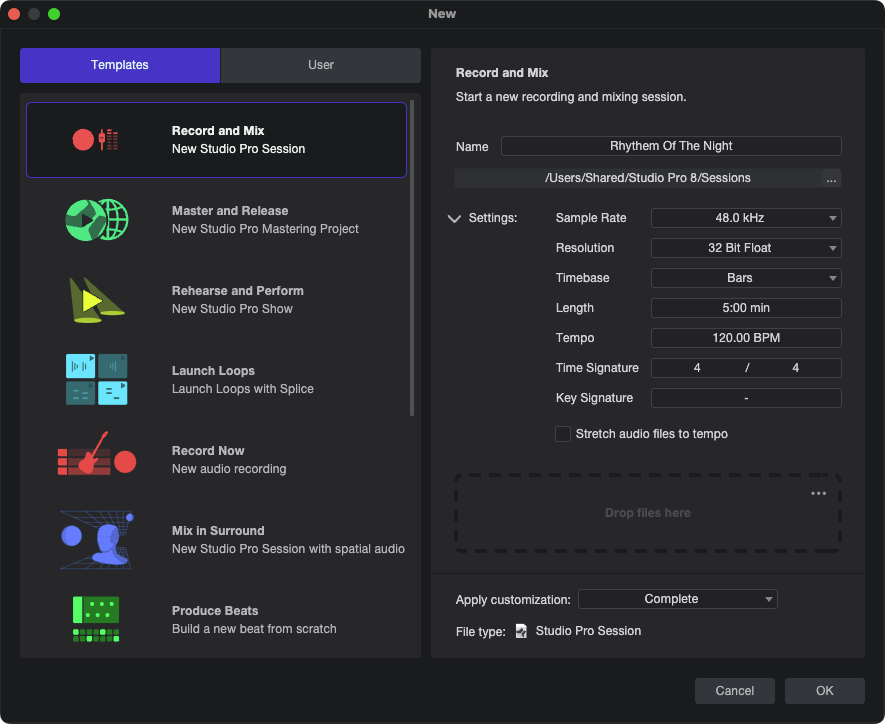
Choose Record and Mix (New Fender Studio Pro Session).
The default name of each new Session is derived from today's date and the Artist name you've selected in the Artist Profile on the Start page. You can set your own title by editing the text in the Name field.
Session Location
New Sessions and all related data are saved to your User Data location, set in Studio Pro/Options/Locations/User Data (macOS: Preferences/Locations/User Data). If you like, you can choose a different file location by clicking on the [...] button in the New Document dialog, and browsing to your chosen location.
When creating a new Session, Fender Studio Pro will remember the last folder you used for a new Session and assume you would like to save your work in the same location. If you would like to restore to the default location, right-click the file path and choose “Reset Folder” from the drop-down menu.
Sample Rate
“Sample rate” refers to the rate at which incoming analog audio is sampled per second during conversion to a digital signal. The most common setting is the standard sample rate for audio CDs: 44.1 kHz, meaning 44,100 samples per second. Fender Studio Pro supports sample rates up to 768 kHz.
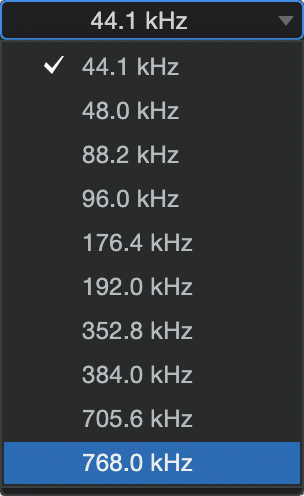
The Fender Studio Pro sample rate should match the sample rate of your audio interface, so by default, the sample rate is set to your current audio interface’s sample rate, and changing this setting initiates a sample rate change in that device. If the sample rates don’t match, Fender Studio Pro resamples all audio files to match the sample rate of the hardware, but this can cause performance problems and should be avoided. Fender Studio Pro is capable of recording at any sample rate your hardware audio device offers.
Not all devices allow a third-party software application to change the hardware sample rate. The desired sample rate should be set before creating a New Session.
File size is directly proportional to the sample rate and bit depth. The higher the sample rate and bit depth, the larger the resulting audio file is.
Resolution
“Resolution” refers to the bit depth of digital audio, which is related to the audio’s dynamic range. Standard CD audio has a 16-bit resolution, which results in roughly 96 dB of dynamic range. Thus, with “CD-quality” audio, the difference between the quietest and loudest sounds possible is 96 dB. The most common resolution setting in professional recording is 24-bit, which produces a dynamic range of approximately 144 dB.
Fender Studio Pro can record audio with 16, 24, 32, or 64-bit (floating point) resolution. Which resolution to use is a matter of preference. If you are unfamiliar with these concepts, try experimenting with recording at each resolution and comparing your results.
Timebase
The timebase of your New Session determines the way the timeline is represented. The timebase selection can be changed at any time. You have the option of the following:
- Seconds: The timeline division is an expression of hours : minutes : seconds : milliseconds.
- Samples: The timeline division is an expression of samples.
- Bars: The timeline division is an expression of musical bars and beats.
- Frames: The timeline division is an expression of frames.
Session Length
Here you can specify a length for your new Session, or go with the default setting of five minutes. If you wish to change the length of a Session once in progress, you can move the Session End marker to the desired end point, as detailed in the Session Start and End Markers section.
You can also change the length of the currently open Session by opening the Session/Session Setup dialog and setting the Session End parameter to your desired end point.
Tempo
Here you can specify a starting tempo for your Session, or go with the default setting of 120 BPM.
Time Signature
Here you can specify a starting time signature for your Session, or use the default setting of 4/4. A Session can change time signatures as many times as needed. To learn more, see the Signature Track chapter.
Key Signature
Use this field to specify a global key signature for your Session. If no selection is made, a key signature is not assigned. A Session can change key signatures as many times as needed. To learn more, see the Signature Track chapter.
File Import
If you have any audio and/or video files you would like to import to your new Session, drag and drop them to this field. Each will receive its own Track when the Session is created, with video being placed appropriately in the Video Track. If multiple videos are imported, they will be placed one after another horizontally with no overlap.
Create a Session Template
If there is a particular Session setup you use again and again, it can be helpful to create a template. To do so, first create a new Empty Session. Next, configure the I/O and create and configure all Tracks, and virtual instruments, effects plug-ins, and any other aspects of the Session that you need in your template. Then, in the File menu, select Save as Template.
Type in a title and description, choose an image for the Template icon, if you like, and select OK. You can also drag an image from Windows Explorer or Mac Finder onto the image icon to use that image. The exact current state of the Session is now available as a template in the User Templates tab of the New menu.
Stretch Audio Files to Session Tempo
Enable this option to automatically timestretch imported audio files (that have tempo information) to match your Session’s current tempo. This is highly recommended to avoid having to manually stretch audio or place Tracks in Timestretch mode.
However, if you do not intend to work with Timestretching in your Session and want to ensure that nothing gets timestretched automatically by mistake, make sure this option is deselected.
Only audio files with encoded tempo information are stretched automatically with this option engaged. Fender Studio Pro remembers tempo information you specify within the Inspector view for any audio file.
Apply Customization
Choose a Customization Preset from this list, if desired. Customization Presets allow you to show/hide specific Fender Studio Pro features to optimize your tool set and are covered in greater detail here.