Exporting Video Files
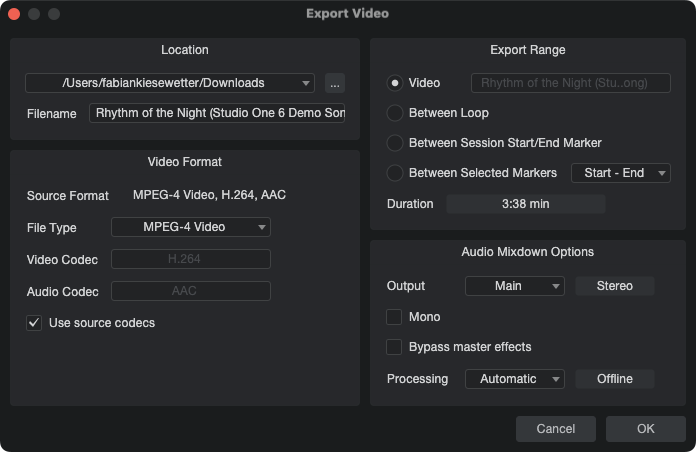
The process of importing a video and extracting its audio track is described in the Video Playback and Sync chapter. Extracting the audio from the video file is an important step because otherwise the audio from the video will not be exported with the Session.
To export the Session to a Video file, follow the directions below:
-
Select Export Video from the Session menu.
-
Next, choose the Export Range. This can be defined by the length of the video, by the Loop points, or by certain Markers within the Session. Audio Mixdown Options are provided too, such as the preferred Output, Mono export, and whether to include the master effects when the file is rendered. Select Realtime from the Processing options if external devices are part of the mix.
-
Choose a file name and storage location in the pop-up window and then choose the File Type, Video Codec, and Audio Codec. Note that the codec options are provided by your computer's operating system, and the options could change when an OS update is released.
-
Once those decisions are made, click OK or Save to export. The Video file will be created and given the appropriate file extension.
Video Format options include:
File Type:
-
Quicktime Video
-
MPEG-4 Video
-
M4V Video
Video Codec:
-
JPEG
-
H.264
-
HEVC
-
Apple ProRes 4444
-
Apple ProRes 422 HQ
-
Apple ProRes 422
-
Apple ProRes 422 LT
-
Apple ProRes 422 Proxy
-
Audio Codec:
-
AAC
-
ALAC