Video Player Interface
Open the Video Player by clicking on the Video Player icon in the toolbar, the Video Player icon on the Video Track header, or by selecting it from the View menu. When first opened, you see a black screen with the text “Movie Not Loaded” displayed. The bottom toolbar contains controls for the video player as follows:
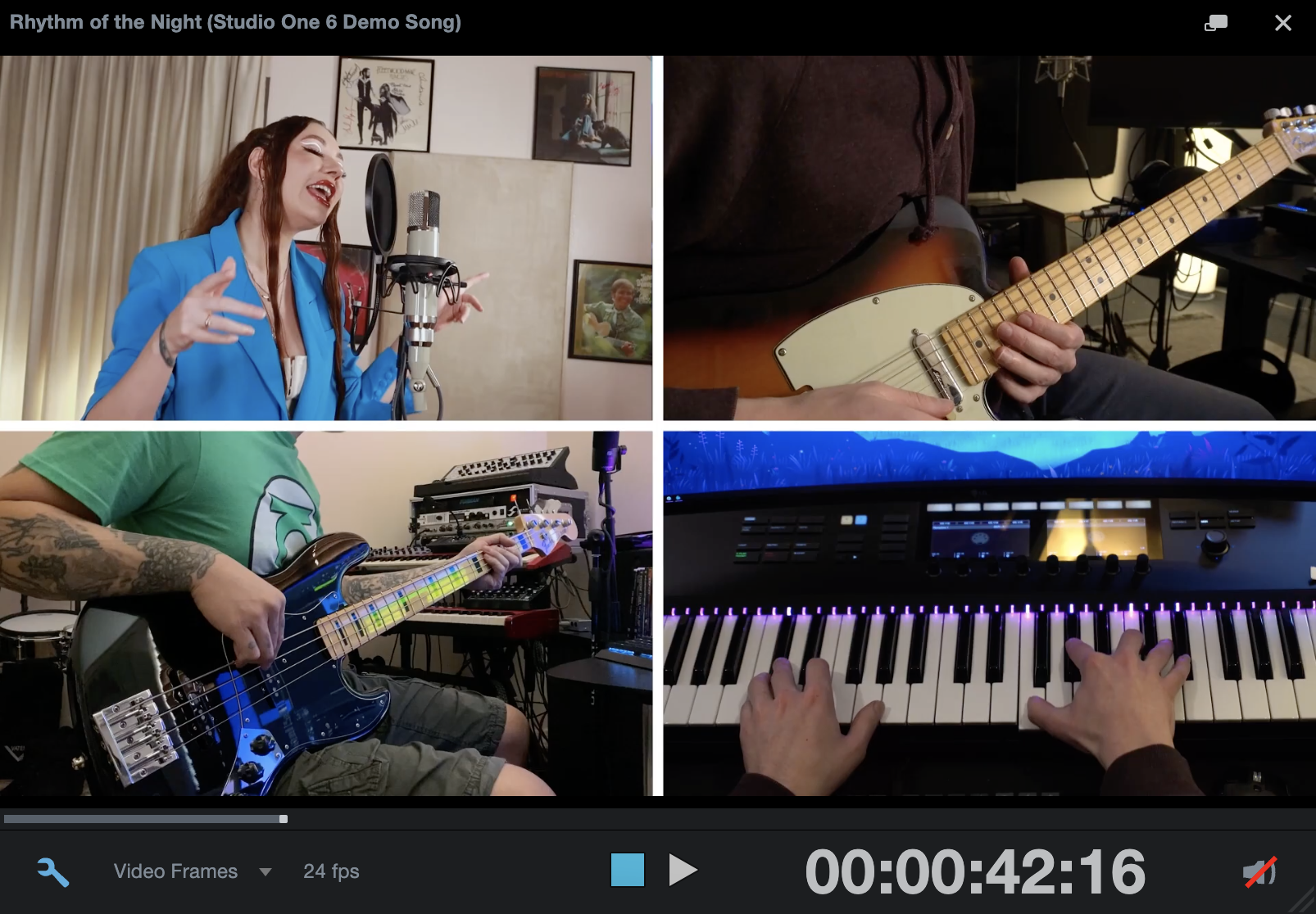
- Video Options: (wrench icon) Choose to display the video as Tiny, Small, Normal, Medium or Large.
Timecode Display: Click to toggle the display of timecode on the bottom right of the Video Player. Available timecode formats include Video Frames, Bars, Seconds, Samples, and Frames. Note that “Video Frames” refers to the framerate of the video itself, while “Frames” refers to the frames of the Global Ruler Track.
- Stop/Play: Click to stop or start video playback independent of the Session.
- Mute: This is engaged by default and mutes the audio output from the video. Click to disengage if you want to hear the audio output from the video.
- Size: Click-and-drag the lower right corner of the video player to freely size the window.
In the upper right corner of the video player, there are buttons to maximize the video player window and to close the video player. When maximized, the video is in a borderless full screen mode, ideal for playback during a performance. To exit the full screen mode, either hover your mouse near the top right of the screen and click the full screen button or press [Esc].